Showing posts with label Lessons. Show all posts

Sunday, August 28, 2022

Wednesday, August 3, 2022

Lesson 08: Start Camera and Roll

 In this post understand cameras space and Perspective and Orthographic  projections interactively.


The cube can be rotated using x, y and z keys. The The camera space can be changed by checking LookAt checkbox and supplying  varying input for Position, Target and Up vectors. 
Similarly, Perspective Projection can be changed by checking Perspective checkbox and supplying  varying input for FOV, Near  Plane and Far Plane.  The FOV can be changed by typing page up and down keys or mouse wheel.
Orthographic Projection can be changed by checking Orthographic checkbox and supplying  varying input for X minmax, y minmax and Z minmax values. 

Tuesday, July 19, 2022

Lesson 07:Drawing Text interactively.


As discussed in the  previous article, Text can be drawn in multiple fonts, sizes and colors. Also can be moved around. It's implemented in Lessons\Lesson07 project.


Friday, July 15, 2022

Lesson05: Multi-Colored Cube


In this post we will try to draw a multi colored cube as shown above. The cube looks elongated because aspect ratio is not applied.

Implementation

MultiColorCube class is implemented as below to draw the single colored cube. 
 It's located in VOGLLib\Geometry\Cube\MultiColorCube.h.
       
//Implements multi colored cube 
class MultiColoredCube :public BaseGeometry
{
public:
	//OpenGL initialization
	void Init()
	{
		//initialize opengl context
		BaseGeometry::Init(new CubeMesh());
		//generate vbo data
		kount = mesh->GenerateVerticesData(false, VAOUtil::POS | VAOUtil::CLR, vaoutl);
		//setup vertices
		vaoutl.SetupVBO(0, VAOUtil::POS);
		vaoutl.SetupVBO(1, VAOUtil::CLR);
		vaoutl.unbindVAO();
	}

	//override
	virtual string vertexShaderSource()
	{
		return R"(
		#version 330 core
		layout (location = 0) in vec3 vVertex;
		layout (location = 1) in vec3 vColor;
		out vec3 fcolor;

		uniform mat4 transform;

		void main()
		{
		   gl_Position =  transform * vec4(vVertex, 1.0);
		   fcolor = vColor;
		};
		)";
	}

	//override
	virtual string fragmentShaderSource()
	{
		return R"(
		#version 330 core
		in vec3 fcolor;
		out vec4 FragColor;
		void main()
		{
		   FragColor = vec4(fcolor,1.0);
		};
		)";
	}
};
 
Lesson05 Project

This purpose of this Lesson05 project is to create a Window initialized with OpenGL context and draw a MultiColorCube with 6 colors one for each face.
As discussed in introduction create tutorial lesson project Lesson02 under Lessons folder.
Add a header file Scene.h as shown below. The class itself is self explanatory. 
The WM_CLOSE  event is  handled in OnCloseWindow function and the window is destroyed and  application is shutdown. 
The Init method calls BaseScene's Init to create hosting window and OpenGL Context. It also attaches BaseCameraInputHandler to rotate the cube either by keyboard or mouse inputs.
The DrawScene method draws the cube with multiple colors and rotates as per keyboard or mouse inputs.
The Cleanup method release the resources.
The Scene class is implemented as below. It's located in Lessons\Lesson05\Scene.h file.
       
#include "Scene\BaseScene.h"
#include "Geometry\Cube\MultiColoredCube.h"

class Scene:public BaseScene
{
public:
	//message handler
	BEGIN_MSG_MAP(Scene0)
		MESSAGE_HANDLER(WM_CLOSE, OnCloseWindow)
		CHAIN_MSG_MAP(BaseScene)
	END_MSG_MAP()

	//override
	int Init(RECT rect, WCHAR *windowname)
	{
		//create host window and context
		BaseScene::Init(rect, windowname);
		//attach mouse keyboard input handler
		mskbd = new BaseCameraInputHandler(m_hWnd);

		//Create multicolor cube
		cube.Init();
		
		return 0;
	}

	//release resources
	void Cleanup()
	{
		cube.Cleanup();
		delete mskbd;
		
	}
	
	//draw the scene
	void DrawScene()
	{
		glClear(GL_COLOR_BUFFER_BIT | GL_DEPTH_BUFFER_BIT);
		//get model view projection matrix. 
		//only model is modified
		//view and projection will be identity matrix
		mskbd->fetchCameraData(&cube.camera);
		cube.Draw();

	}

	//Close the window
	LRESULT OnCloseWindow(UINT uMsg, WPARAM wParam, LPARAM lParam, BOOL& bHandled)
	{
		bHandled = TRUE;
		DestroyWindow();
		PostQuitMessage(0);
		return 0;
	}


private:
	MultiColoredCube cube;
}; 
 
The main.cpp is located in Lessons\Lesson05\main.cpp file. It creates the scene object and calls its init method.
       
#include "Scene.h"

Scene scene;

int WINAPI WinMain(HINSTANCE inst, HINSTANCE prev, LPSTR cmd_line, int show)
{
	scene.Init(RECT{ 100, 100, 780, 500 }, L"Modern OpenGL-Tutorial - Lesson05");
	scene.ShowWindow(show);

	MSG msg;
	while (GetMessage(&msg, 0, 0, 0)) 
	{
		TranslateMessage(&msg);
		DispatchMessageA(&msg);
	}

	return 0;
}     
 
The output looks as shown in the top. The cube is rotated by 20 degrees pitch and 20 degrees yaw. The camera position at the origin looking down on -Z axis or the back face of the cube.
To rotate the cube X,Y and Z keys can be used. They rotate respectively pitch, yaw and roll the cube  by 10 degrees.
In the next post we shall learn essential 3d Math.

Thursday, July 14, 2022

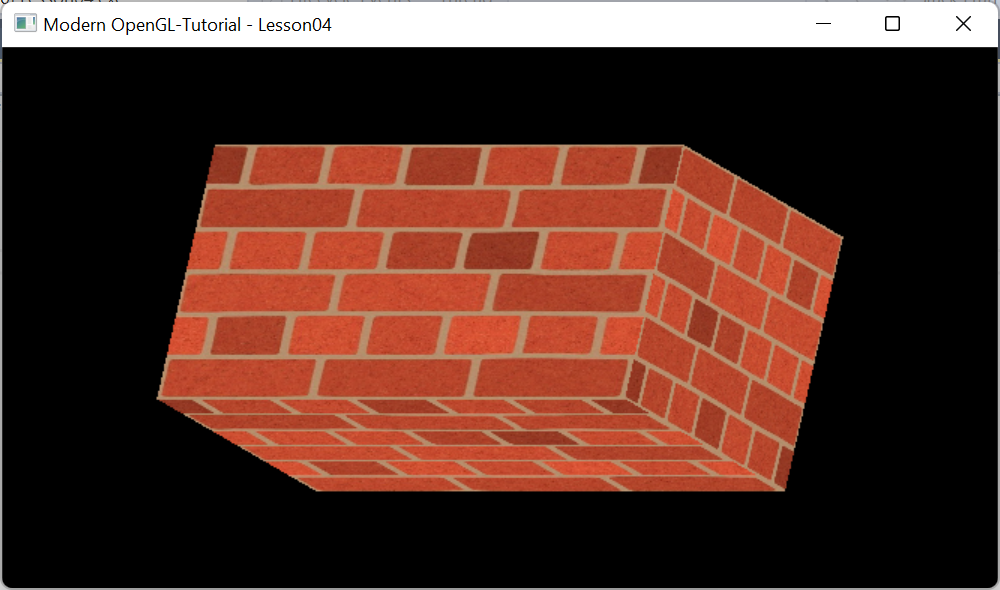
Lesson04:Textured Cube

 A Texture is 2D image that can be wrapped around a 3D object like a gift wrapper. For example, resources\textures\bricks2.jpg is a 2D Texture file. 

Unlike cartesian coordinates, Texture follow UV  System as shown below.

TextureUtil Class is used for loading textures. It uses SOIL2 library discussed earlier to implement it.
It's located in VOGLLib\Geometry\TextureUtil.h.

Loading Texture
OpenGL supports up to 80 Textures and each with its own identifier. Loading textures is implemented in LoadTexture method in TextureUtil class.
SOIL_load_OGL_texture(filename.c_str(), SOIL_LOAD_AUTO, 0, SOIL_FLAG_MIPMAPS | SOIL_FLAG_INVERT_Y);
       
MIPMAP
Mipmapping is a technique where a high-resolution texture is downscaled and filtered so that each subsequent mip level is a quarter of the area of the previous level. This means that the texture and all of its generated mips requires no more than 1.5 times the original texture size. An example is shown below.


Inversion of Y Axis
After loading the image needs to be inverted since the V axis of the texture and Y axis of OpenGL  have opposite polarity.

Wrapping
As shown below, determines how the texture is wrapped.

Texture Filtering
Texture filtering is a method that is used to improve the texture quality in a scene. Without texture filtering, artifacts like aliasing generally look worse. Texture filtering makes textures look better and less blocky.

Applying Texture
As discussed previously, Texture coordinates are passed during rendering. The following mapping in relation to the UxV axes is used as texture coordinates for the vertices consecutively.
       
       //first triangle
		{  0.0,   1.0,   0.0 },
		{ -1.0,   0.0,   0.0 },
		{  0.0,  -1.0,   0.0 },
       //second triangle
		{  1.0,   0.0,   0.0 },
		{  0.0,   0.0,  -1.0 },
		{  0.0,   0.0,   1.0 },
        
Implementation

TexturedCube class is implemented as below to draw the textured cube. 
 It's located in VOGLLib\Geometry\Cube\TexturedCube .h.
       
#pragma once
#include "..\BaseGeometry.h"
#include "..\TextureUtil.h"
#include "CubeMesh.h"
//implements texturedcube
class TexturedCube:public BaseGeometry
{
public:
	//initialize
	void Init(GLushort	texunit, const string& filename)
	{
		//create mesh and the window
		BaseGeometry::Init(new CubeMesh());
		//generate VBOs for position and Texture coordinates
		kount = mesh->GenerateVerticesData(false, VAOUtil::POS | VAOUtil::TEX, vaoutl);
		//setup vertices
		vaoutl.SetupVBO(0, VAOUtil::POS);
		vaoutl.SetupVBO(1, VAOUtil::TEX);
		vaoutl.unbindVAO();
		this->filename = filename;

		//Load Texture from the file
		texutl.Init(texunit);
		texutl.LoadTexture(filename);
	}

	//update uniforms
	void UpdateUniforms()
	{
		//pass builtin texture to the fragment shader 
		texutl.MakeActive(shader.GetUniformLocation("tex"));
		BaseGeometry::UpdateUniforms();
	}

	//release resources
	void Cleanup()
	{
		BaseGeometry::Cleanup();
		texutl.Cleanup();
	}

	//override
	virtual string vertexShaderSource()
	{
		return R"(
		#version 330 core
		layout (location = 0) in vec3 vVertex;
		layout (location = 1) in vec2 vTexCrd;
		uniform mat4 transform;
		out vec2 FragTexCrd; 
		void main()
		{
			gl_Position = transform * vec4(vVertex, 1.0);
			FragTexCrd=vTexCrd;
		};
		)";
	}

	//override
	virtual string fragmentShaderSource()
	{
		return R"(
		#version 330 core
		in vec2 FragTexCrd;
		out vec4 FragColor;
		uniform sampler2D tex;
		void main()
		{
		   FragColor = texture(tex, FragTexCrd);
		};
		)";
	}

private:
	TextureUtil  texutl;
	std::string filename;
};   
 

This purpose of this Lesson04 project is to create a Window initialized with OpenGL context and draw a TexturedCube wrapped with texture.
As discussed in introduction create tutorial lesson project Lesson04 under Lessons folder.
Add a header file Scene.h as shown below. The class itself is self explanatory. 
The WM_CLOSE  event is  handled in OnCloseWindow function and the window is destroyed and  application is shutdown. 
The Init method calls BaseScene's Init to create hosting window and OpenGL Context. It also attaches BaseCameraInputHandler to rotate the cube either by keyboard or mouse inputs. It initializes the IndexedCube with texture.
The DrawScene method draws the cube with loaded texture  and rotates as per keyboard or mouse inputs.
The Cleanup method release the resources.
The Scene class is implemented as below. It's located in Lessons\Lesson03\Scene.h file.
       
#include "Scene\BaseScene.h"
#include "Geometry\Cube\TexturedCube.h"

class Scene:public BaseScene
{
public:
	//message handler
	BEGIN_MSG_MAP(Scene0)
		MESSAGE_HANDLER(WM_CLOSE, OnCloseWindow)
		CHAIN_MSG_MAP(BaseScene)
	END_MSG_MAP()

	//override
	int Init(RECT rect, WCHAR *windowname)
	{
		//create host window and context
		BaseScene::Init(rect, windowname);
		//attach mouse keyboard input handler
		mskbd = new BaseCameraInputHandler(m_hWnd);

		//Create cube an set texture filename
		cube.Init(0, R"(..\..\resources\textures\bricks2.jpg)");
		
		return 0;
	}

	//release resources
	void Cleanup()
	{
		cube.Cleanup();
		delete mskbd;
		
	}
	
	//draw the scene
	void DrawScene()
	{
		glClear(GL_COLOR_BUFFER_BIT | GL_DEPTH_BUFFER_BIT);
		//get model view projection matrix. 
		//only model is modified
		//view and projection will be identity matrix
		mskbd->fetchCameraData(&cube.camera);
		cube.Draw();

	}

	//Close the window
	LRESULT OnCloseWindow(UINT uMsg, WPARAM wParam, LPARAM lParam, BOOL& bHandled)
	{
		bHandled = TRUE;
		DestroyWindow();
		PostQuitMessage(0);
		return 0;
	}


private:
	TexturedCube cube;
};   
 
The main.cpp is located in Lessons\Lesson03\main.cpp file. It creates the scene object and calls its init method.
       
#include "Scene.h"

Scene scene;

int WINAPI WinMain(HINSTANCE inst, HINSTANCE prev, LPSTR cmd_line, int show)
{
	scene.Init(RECT{ 100, 100, 780, 500 }, L"Modern OpenGL-Tutorial - Lesson04");
	scene.ShowWindow(show);

	MSG msg;
	while (GetMessage(&msg, 0, 0, 0)) 
	{
		TranslateMessage(&msg);
		DispatchMessageA(&msg);
	}

	return 0;
}
 
The output looks as shown in the top. The cube is rotated by 20 degrees pitch and 20 degrees yaw. The camera position at the origin looking down on -Z axis or the back face of the cube.
To rotate the cube X,Y and Z keys can be used. They rotate respectively pitch, yaw and roll the cube  by 10 degrees,
In the next post we shall create a colored cube with transformation.

Lesson03:Indexed Cube with interpolated colors


In Lesson02 we saw that VBO were used to draw the single colored cube. In this post we  will discuss how to draw an Indexed cube using EBO with interpolated colors. It looks as shown above.

Drawing a cube with VBO requires binding VBO of 12 vertices containing position and optionally  normal vector, color, Texture coordinate data. Whereas an  Indexed draw requires binding VBO of 8 vertices containing position, normal vector, color, Texture coordinate data and bind an EBO containing 12 indices. 
To draw a VBO cube glDrawArrays API is used where as for EBO or Indexed, glDrawElements is used. Here the EBO contains indices data.
Color interpolation means a triangle's fragment's color is computed by interpolating colors of the vertices. 

Implementation
IndexedCube class is implemented as below. It's located in VOGLLib\Geometry\Cube\IndexedCube .h.
       
#pragma once
#include "..\BaseGeometry.h"
#include "CubeMesh.h"

//implements EBO Indexed cube
class IndexedCube :public BaseGeometry
{
public:

	void Init()
	{
		//initialize
		BaseGeometry::Init(new CubeMesh());
		//update VBO data of the vertices
		mesh->GenerateVerticesData(true, VAOUtil::POS | VAOUtil::CLR, vaoutl);
		//setup vertex for Position
		vaoutl.SetupVBO(0, VAOUtil::POS);
		//setup vertex for Color
		vaoutl.SetupVBO(1, VAOUtil::CLR);
		//populate EBO indices
		kount = mesh->GenerateIndicesData(vaoutl);
		//bind VBO
		vaoutl.SetupEBO();

		vaoutl.unbindVAO();
	}

	//draw
	void Draw()
	{
		BaseGeometry::Draw(true);
	}

	//override
	virtual string vertexShaderSource()
	{
		return R"(
		#version 330 core
		layout (location = 0) in vec3 vVertex;
		layout (location = 1) in vec3 vColor;
		out vec3 fcolor;

		uniform mat4 transform;

		void main()
		{
		   gl_Position =  transform * vec4(vVertex, 1.0);
		   fcolor = vColor;
		};
		)";
	}

	//override
	virtual string fragmentShaderSource()
	{
		return R"(
		#version 330 core
		in vec3 fcolor;
		out vec4 FragColor;
		void main()
		{
		   FragColor = vec4(fcolor,1.0);
		};
		)";
	}

};     
 
Lesson03 Project

This purpose of this Lesson03 project is to create a Window initialized with OpenGL context and draw a IndexedCube with interpolated colors.
As discussed in introduction create tutorial lesson project Lesson03 under Lessons folder.
Add a header file Scene.h as shown below. The class itself is self explanatory. 
The WM_CLOSE  event is  handled in OnCloseWindow function and the window is destroyed and  application is shutdown. 
The Init method calls BaseScene's Init to create hosting window and OpenGL Context. It also attaches BaseCameraInputHandler to rotate the cube either by keyboard or mouse inputs.
The DrawScene method draws the cube with interpolated colors and rotates as per keyboard or mouse inputs.
The Cleanup method release the resources.

The Scene class is implemented as below. It's located in Lessons\Lesson03\Scene.h file.
       
#include "Scene\BaseScene.h"
#include "Geometry\Cube\IndexedCube.h"

class Scene:public BaseScene
{
public:
	//message handler
	BEGIN_MSG_MAP(Scene0)
		MESSAGE_HANDLER(WM_CLOSE, OnCloseWindow)
		CHAIN_MSG_MAP(BaseScene)
	END_MSG_MAP()

	//override
	int Init(RECT rect, WCHAR *windowname)
	{
		//create host window and context
		BaseScene::Init(rect, windowname);
		//attach mouse keyboard input handler
		mskbd = new BaseCameraInputHandler(m_hWnd);

		//Create cube an set color
		cube.Init();
		
		return 0;
	}

	//release resources
	void Cleanup()
	{
		cube.Cleanup();
		delete mskbd;
		
	}
	
	//draw the scene
	void DrawScene()
	{
		glClear(GL_COLOR_BUFFER_BIT | GL_DEPTH_BUFFER_BIT);
		//get model view projection matrix. 
		//only model is modified
		//view and projection will be identity matrix
		mskbd->fetchCameraData(&cube.camera);
		cube.Draw();

	}

	//Close the window
	LRESULT OnCloseWindow(UINT uMsg, WPARAM wParam, LPARAM lParam, BOOL& bHandled)
	{
		bHandled = TRUE;
		DestroyWindow();
		PostQuitMessage(0);
		return 0;
	}


private:
	IndexedCube cube;
};      
 
The main.cpp is located in Lessons\Lesson03\main.cpp file. It creates the scene object and calls its init method.
       
#include "Scene.h"

Scene scene;

int WINAPI WinMain(HINSTANCE inst, HINSTANCE prev, LPSTR cmd_line, int show)
{
	scene.Init(RECT{ 100, 100, 780, 500 }, L"Modern OpenGL-Tutorial - Lesson03");
	scene.ShowWindow(show);

	MSG msg;
	while (GetMessage(&msg, 0, 0, 0)) 
	{
		TranslateMessage(&msg);
		DispatchMessageA(&msg);
	}

	return 0;
}     
 
The output looks as shown in the top. The cube is rotated by 20 degrees pitch and 20 degrees yaw. The camera position at the origin looking down on -Z axis or the back face of the cube.
To rotate the cube X,Y and Z keys can be used. They rotate respectively pitch, yaw and roll the cube  by 10 degrees,
In the next post we shall create a textured cube.

Tuesday, July 12, 2022

Lesson02: Single Colored cube


In the previous post the graphics pipeline and vertex processing were explained. In this post we will try to draw a single colored cube as shown above. The cube looks elongated because aspect ratio is not applied.

Consider a cube with 8 vertices (0,1,2,3,4,5,6,7) and 6 faces (top, bottom, right, left, back, front) with it's center at the origin (0,0,0).

vertices 0,1,5,4 will have -X whereas vertices 3,2,6,7 will have +X.
vertices 0,4,7,3 will have -Y whereas vertices 1,5,6,2 will have +Y.
vertices 0,1,2,3 will have -Z whereas vertices 4,5,6,7 will have +Z.

top face is made of two triangles  made from vertices 0,4,7 and  7,3,0.
left face is made of two triangles  made from vertices 0,1,5 and 5,4,0.
bottom face is made of two triangles  made from vertices 1,5,6 and  6,2,1.
right  face is made of two triangles  made from vertices 6,7,3 and 3,2,6.
back face is made of two triangles  made from vertices 0,1,2 and 2,3,0.
front face is made of two triangles  made from vertices 4,5,6 and 6,7,4.

Implementation

CubeMesh class is implemented to generate vertices for the 6 faces as discussed above. It's located in VOGLLib\Geometry\Cube\CubeMesh.h
SingleColoredCube class is implemented as below to draw the single colored cube. 
 It's located in VOGLLib\Geometry\Cube\SingleColoredCube.h.
       
//Implements singled colored cube 
class SingleColoredCube:public BaseGeometry
{
public:

	//Initialize
	void Init(glm::vec3 color)
	{
		//setup with a cube and Compile and link shaders
		BaseGeometry::Init(new CubeMesh());
		//assign the color
		this->color = color;
		//Generate VBO data
		kount = mesh->GenerateVerticesData(FALSE,VAOUtil::POS, vaoutl);
		//Enable single vertex
		vaoutl.SetupVBO(0, VAOUtil::POS);
		vaoutl.unbindVAO();
	}
	//Override to supply color of the cube
	void UpdateUniforms()
	{
		BaseGeometry::UpdateUniforms();
		glUniform3fv(shader.GetUniformLocation("color"), 1, glm::value_ptr(color));
	}

private:
	//override
	string vertexShaderSource()
	{
		return R"(
		#version 330 core
		layout (location = 0) in vec3 vVertex;

		uniform mat4 transform;
		uniform vec3 color;
		out vec3 cubecolor;

		void main()
		{
			gl_Position =  transform * vec4(vVertex, 1.0);
			cubecolor = color;
		};
		)";
	}
	//override
	string fragmentShaderSource()
	{
		return R"(
		#version 330 core
		in vec3 cubecolor;
		out vec4 FragColor;
		void main()
		{
		   FragColor = vec4(cubecolor,1);
		};
		)";
	}

	glm::vec3 color;
};  
 
Lesson02 Project
This purpose of this Lesson02 project is to create a Window initialized with OpenGL context and draw a SingleColoredCube with fuchsia color.
As discussed in introduction create tutorial lesson project Lesson02 under Lessons folder.
Add a header file Scene.h as shown below. The class itself is self explanatory. 
The WM_CLOSE  event is  handled in OnCloseWindow function and the window is destroyed and  application is shutdown. 
The Init method calls BaseScene's Init to create hosting window and OpenGL Context. It also attaches BaseCameraInputHandler to rotate the cube either by keyboard or mouse inputs.
The DrawScene method draws the cube with fuchsia color and rotates as per keyboard or mouse inputs.
The Cleanup method release the resources.
The Scene class is implemented as below. It's located in Lessons\Lesson02\Scene.h file.
       
#include "Scene\BaseScene.h"
#include "Geometry\Cube\SingleColoredCube.h"

class Scene:public BaseScene
{
public:
	//message handler
	BEGIN_MSG_MAP(Scene0)
		MESSAGE_HANDLER(WM_CLOSE, OnCloseWindow)
		CHAIN_MSG_MAP(BaseScene)
	END_MSG_MAP()

	//override
	int Init(RECT rect, WCHAR *windowname)
	{
		//create host window and context
		BaseScene::Init(rect, windowname);

		//attach keyboard/mouse input handler
		mskbd = new BaseCameraInputHandler(m_hWnd);

		//Create cube an set color
		cube.Init(glm::vec3(1.0f,0.0f,1.0f));
		return 0;
	}

	//release resources
	void Cleanup()
	{
		cube.Cleanup();
		delete mskbd;
	}
	
	//draw the scene
	void DrawScene()
	{
		glClear(GL_COLOR_BUFFER_BIT | GL_DEPTH_BUFFER_BIT);
		//get model view projection matrix. 
		//only model is modified
		//view and projection will be identity matrix
		mskbd->fetchCameraData(&cube.camera);
		cube.Draw();

	}

	//Close the window
	LRESULT OnCloseWindow(UINT uMsg, WPARAM wParam, LPARAM lParam, BOOL& bHandled)
	{
		bHandled = TRUE;
		DestroyWindow();
		PostQuitMessage(0);
		return 0;
	}


private:
	SingleColoredCube cube;
};      
 
The main.cpp is located in Lessons\Lesson02\main.cpp file. It creates the scene object and calls its init method.
       
#include "Scene.h"

Scene scene;

int WINAPI WinMain(HINSTANCE inst, HINSTANCE prev, LPSTR cmd_line, int show)
{
	scene.Init(RECT{ 100, 100, 780, 500 }, L"Modern OpenGL-Tutorial - Lesson02");
	scene.ShowWindow(show);

	MSG msg;
	while (GetMessage(&msg, 0, 0, 0)) 
	{
		TranslateMessage(&msg);
		DispatchMessageA(&msg);
	}

	return 0;
}      
 
The output looks as shown in the top. The cube is rotated by 20 degrees pitch and 20 degrees yaw. The camera position at the origin looking down on -Z axis or the back face of the cube.
To rotate the cube X,Y and Z keys can be used. They rotate respectively pitch, yaw and roll the cube  by 10 degrees.
In the next post we shall create a indexed cube.

Saturday, July 9, 2022

Lesson01: Initializing OpenGL Context

Overview 
This post discusses  implementing the basic operations of creating a hosting window, Initializing it with OpenGL context, rendering and handle mouse/keyboard inputs is discussed. 

Details
The functionality is implemented in the Scene class derived from BaseScene class.
The WM_CLOSE  event is  handled in OnCloseWindow function and the window is destroyed and  application is shutdown. 

The three methods Init,DrawScene and Cleanup are overridden as below.
The Init method calls BaseScene::Init to create hosting window and OpenGL Context.
The DrawScene method clears the window and paints it with fuchsia color.
The Cleanup method does not do anything.

#include "Scene\BaseScene.h"

class Scene:public BaseScene
{
	BEGIN_MSG_MAP(Scene)
		MESSAGE_HANDLER(WM_CLOSE, OnCloseWindow)
		CHAIN_MSG_MAP(BaseScene)
	END_MSG_MAP()

	//shutdown the application when the wondow is closed
	LRESULT OnCloseWindow(UINT uMsg, WPARAM wParam, LPARAM lParam, BOOL& bHandled)
	{
		bHandled = TRUE;
		DestroyWindow();
		PostQuitMessage(0);
		return 0;
	}
	

	//override to create application window and opengl context
	int Init(RECT rect, WCHAR *windowname)
	{
		BaseScene::Init(rect, windowname);
		return 0;
	}

	//no cleanup
	void Cleanup()
	{
	}
	
	//draw
	void DrawScene()
	{
		glClearColor(1, 0, 1, 1);
		glClear(GL_COLOR_BUFFER_BIT | GL_DEPTH_BUFFER_BIT);
		glCullFace(GL_FRONT_AND_BACK);
	}

};

Scene class is hosted main.cpp. which creates the scene object and displays it. Message pump is added to process windows messages.

#include "Scene.h"

Scene scene;

int WINAPI WinMain(HINSTANCE inst, HINSTANCE prev, LPSTR cmd_line, int show)
{
	//create window and opengl context
	scene.Init(RECT{ 100, 100, 780, 500 }, L"Modern OpenGL-Tutorial");

	//draw
	scene.ShowWindow(show);

	//message pump
	MSG msg;
	while (GetMessage(&msg, 0, 0, 0)) 
	{
		TranslateMessage(&msg);
		DispatchMessageA(&msg);
	}

	return 0;
}

Output
The output looks as shown in the top.

The code and binaries for Lesson01 is found here